

Discovery
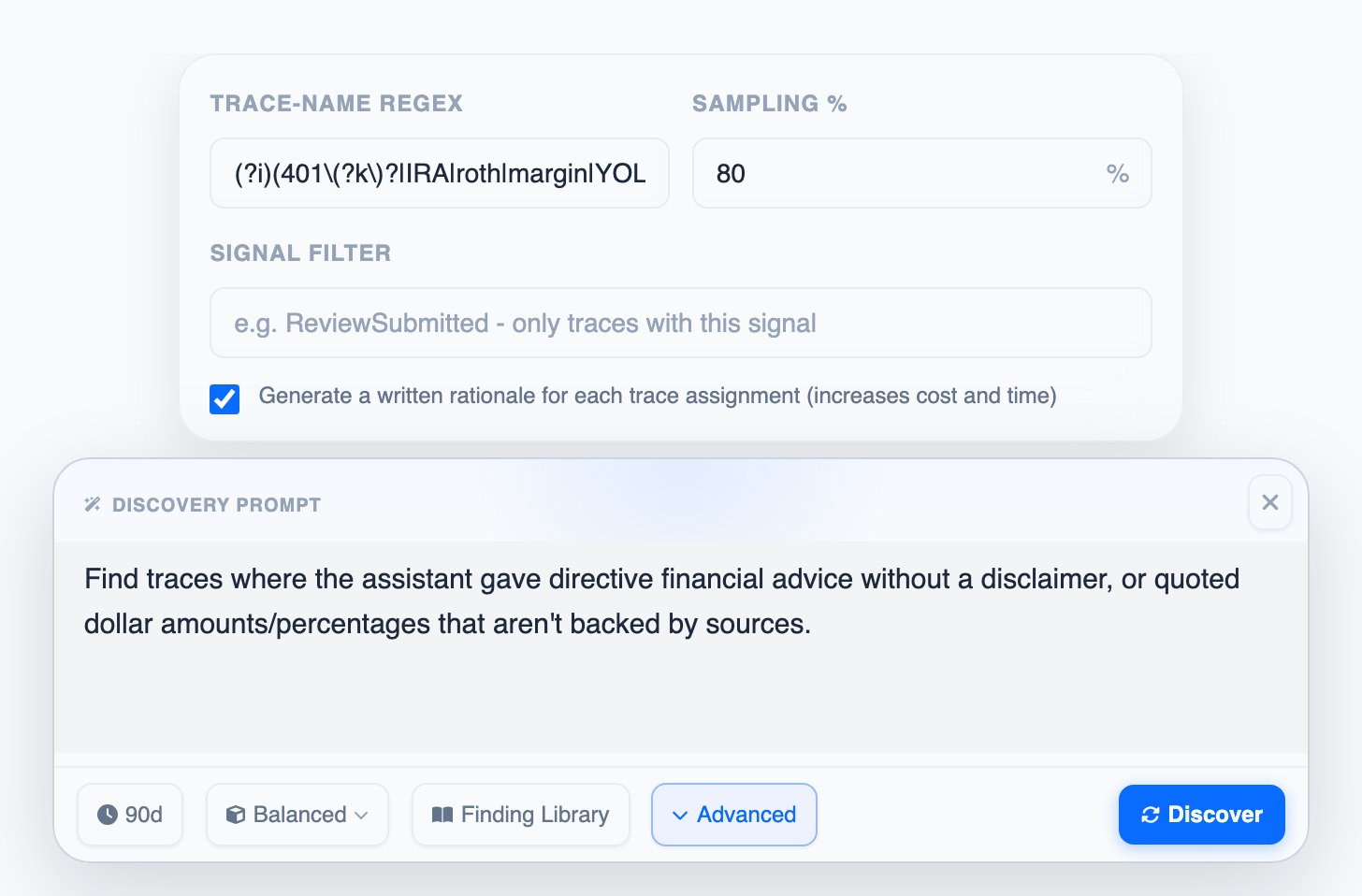
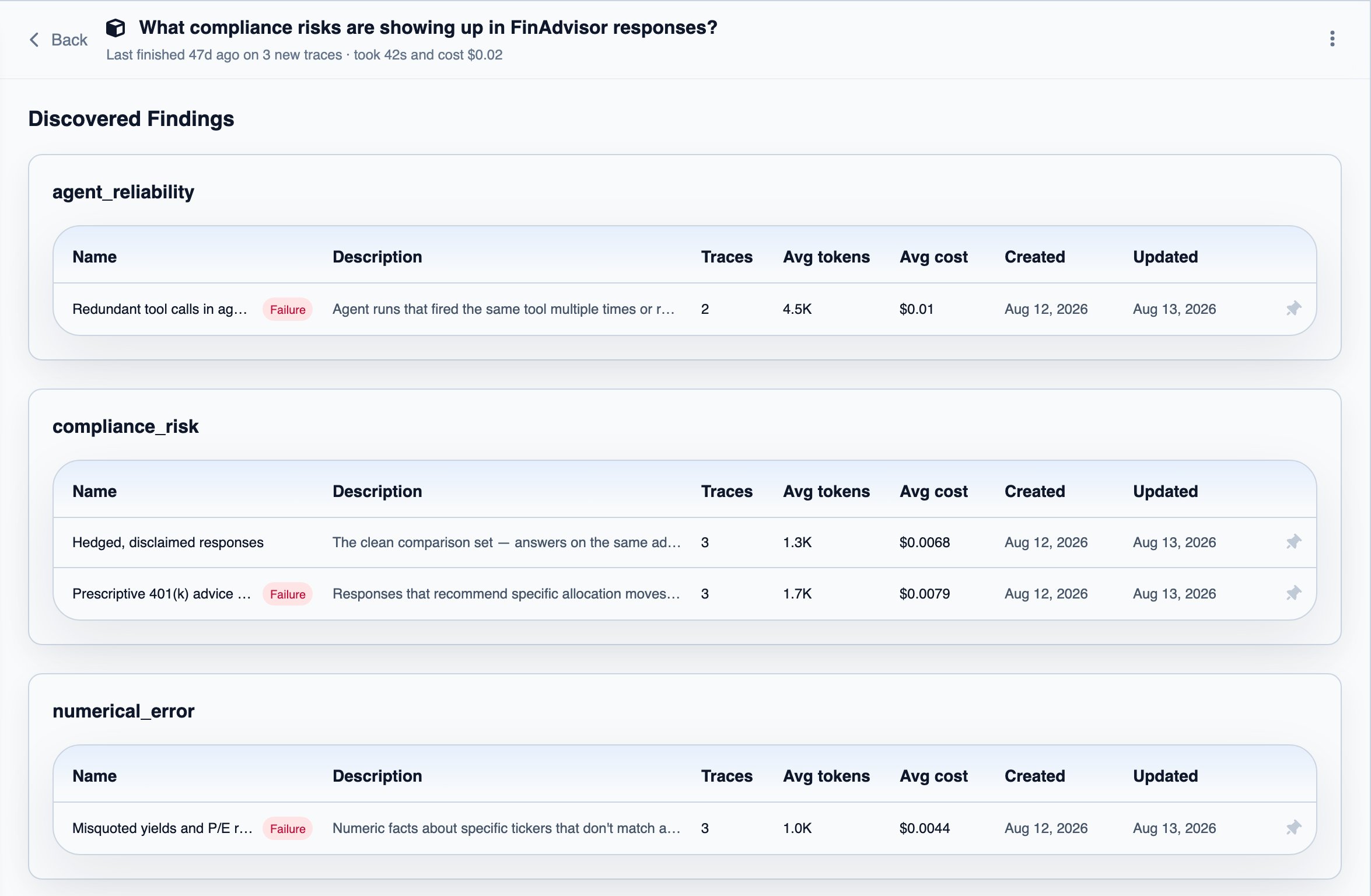
When you don’t yet know exactly what you’re looking for, start with Discovery. Discovery is where you run investigations into your traces at scale. Describe in plain language what you want to look into, and Discovery scans your traces and groups related ones into findings, including patterns you didn’t name. Pin the interesting ones to keep watching them in Tracking. When you run a search you set the prompt, the model quality and the time range; the rest sits under Advanced:- Discovery prompt: describe the behavior in plain words. It does not have to be a failure.
- Model quality: Cheapest and Balanced find simpler patterns at lower cost; High-quality catches issues that are hard to find.
- Time range: the window of traces to search, the last 30 days by default.
- Sampling %: the share of traces the search reads, 10% by default. Raise it for coverage, lower it to keep cost and time down.
- Trace-name regex: limit the search to traces whose name matches a pattern.
- Explanations: optionally get a short reason, with citations from the trace, for why each trace matched. Off by default since it costs more.
Tracking
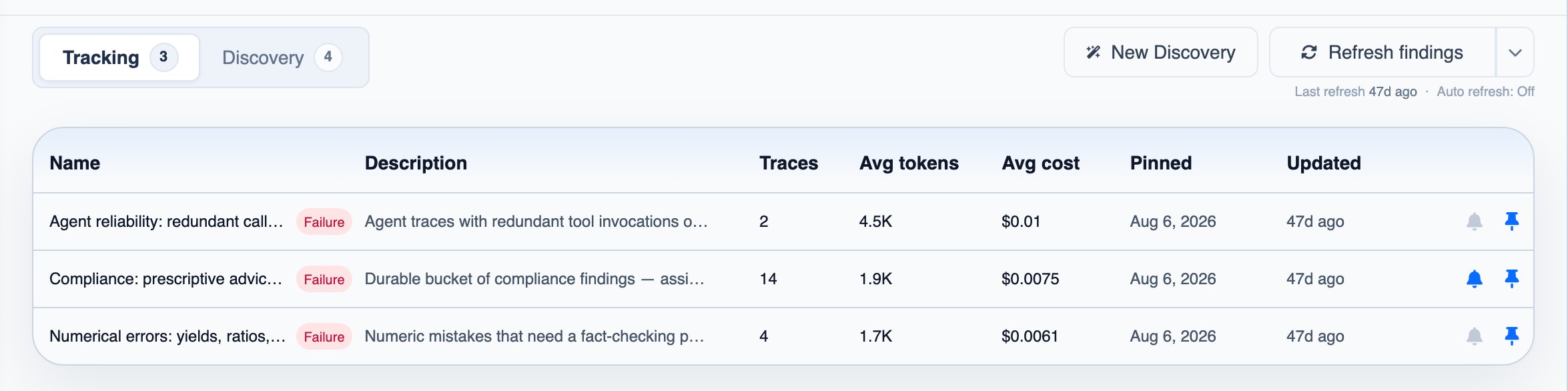
When you know a pattern matters, pin it to Tracking. Tracking shows the findings you pinned. On every refresh, manual or on the Auto refresh schedule you choose (off by default), DataFramer checks the traces that arrived since the last refresh against each pinned finding and shows how many traces matched it over time.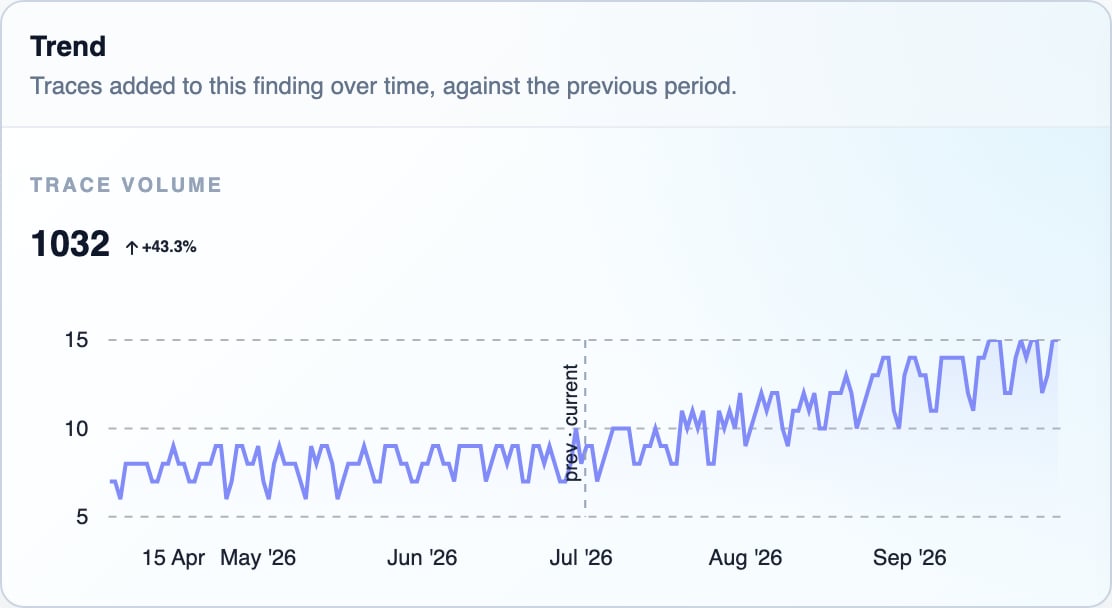
Traces
Findings works on the traces you pulled in. See Connect your traces for setup, the Traces page, and how to route traces to reviews and datasets.Next steps
Root Causes & Remediation
Get the root causes and suggested fixes behind the failures you track
Reviews
Route the patterns you find to a human reviewer
Generation
Use the traces you found as seeds for synthetic data