

Fields
A field names one value that your signals and traces carry, such as a questionnaire id, and lists the paths where it is: on events, such asproperties.questionnaire_id, and on traces, such as metadata.questionnaire_id. Find them under Settings → Events → Fields. The linking rule and the work types of Outcome Metering pick from them.
The first path that has a value is used, so when sources put one value at different paths, for example properties.plan.tier from Segment’s webhook and properties.plan_tier from its warehouse export, list both. A trace without the value reads it from its parent trace.
Journey id, the id our libraries write, and User are built in; you can add paths to them but not delete them. Only company admins change fields. Saving new paths for a field counts again the work of each work type that uses it, and links your signals and traces again if the linking rule uses it.
Linking rule
The linking rule decides which signals and traces belong to the same journey. Choose it under User Journeys → Linking; it applies to all of your signals and traces:- Link by a field (the default): a signal and a trace are in the same journey when a field has the same value on both. The default field is Journey id. Pick another field to link by a value you already put on both, such as a conversation id, or PostHog’s
properties.$session_idon events and Langfuse’ssessionIdon traces. - User and time gap: each user’s signals and traces form one journey until the user is inactive for longer than a gap you set. The user id comes from the User field, or from another field you pick.
Check that it works
Open User Journeys in DataFramer. The Live Events tab lists accepted and rejected events as they arrive, with the reason for each rejection and the source of each event by name, such as “Library · browser” or “Segment webhook · web app”. The Linking tab shows how many signals were matched to a trace over the last 30 days, and how many were not.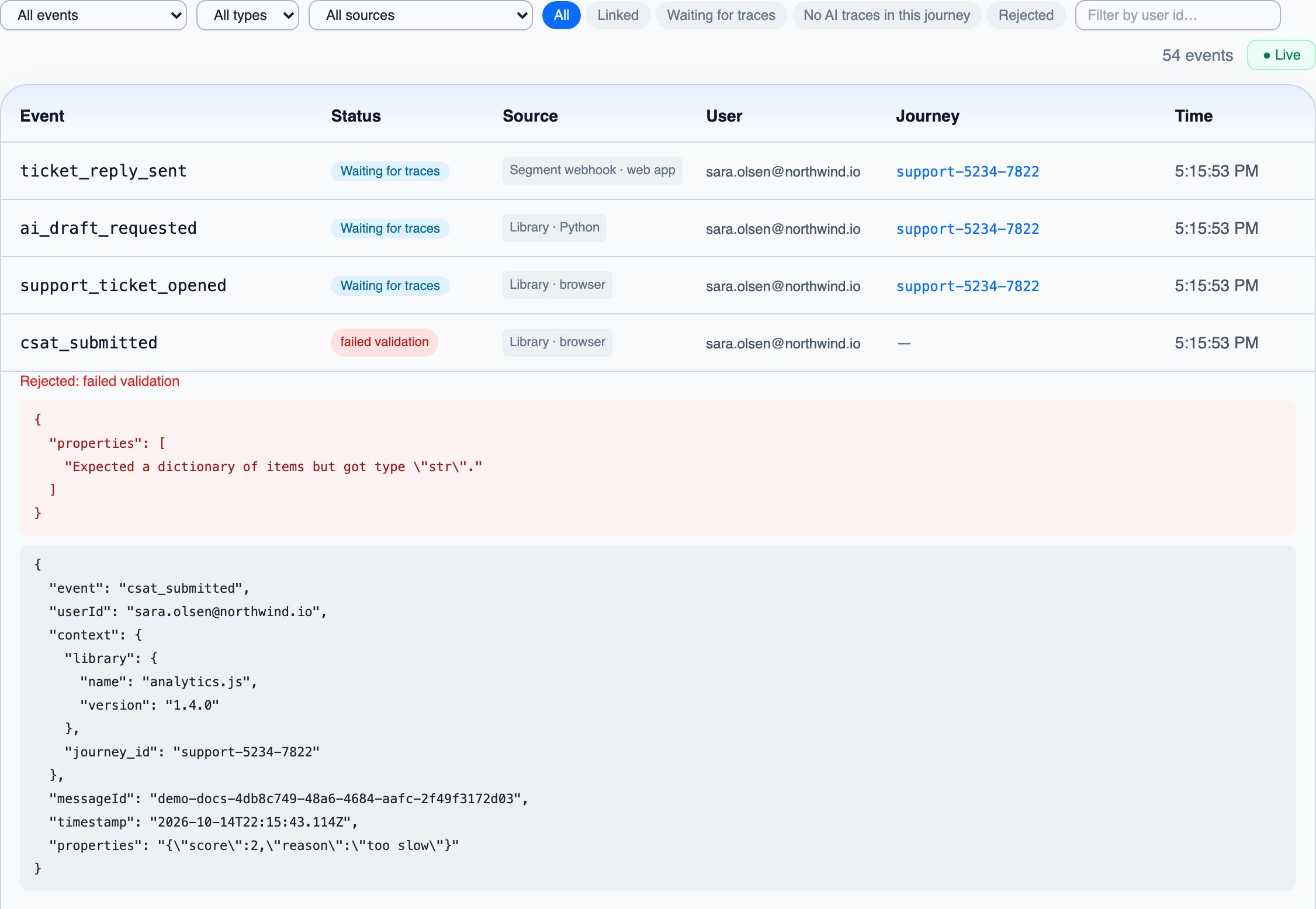

Next steps
User Journeys
See the resulting journeys and their timelines